QR code in store, link received by text, the store's own app or a simple photo: every method for Apple Wallet, Google Wallet and Samsung Wallet, checked against the official documentation, and what to do when the card won't add.
The short answer. If the merchant offers a Wallet card: scan their QR code with your camera (or open their link), fill in the short form, then tap "Add to Apple Wallet" on iPhone or "Add to Google Wallet" on Android. Confirm with "Add": the card is on your phone, with no app to install.
If they don't offer one: on Android, add the card from a photo of its barcode in Google Wallet; on iPhone with iOS 27, create the card yourself in the Wallet app.
"Wallet" is your phone's digital wallet, where payment cards, tickets and loyalty cards live. There isn't just one, but one per ecosystem:
| Phone | Wallet to use | Already installed? |
|---|---|---|
| iPhone | The Wallet app (Apple Wallet) | Yes, on every iPhone |
| Android (Pixel, Xiaomi, Oppo…) | Google Wallet | On most, otherwise from the Play Store |
| Samsung Galaxy | Samsung Wallet or Google Wallet | Samsung Wallet usually, Google Wallet from the Play Store |
Good to know: on an iPhone set to English, Apple Wallet simply appears as the Wallet app on your Home Screen. It's the same thing, and merchants usually label their buttons "Add to Apple Wallet". If your iPhone is set to another language, the app name may be translated (in French, for example, it's called Cartes).
On iPhone, you don't add a loyalty card by typing a number into the Wallet app: the merchant provides the card, through a QR code, a link or their own app. Apple says so itself: if no option to add the card is offered, you need to contact the merchant. The only exception is manual card creation, introduced with iOS 27 (method 4).
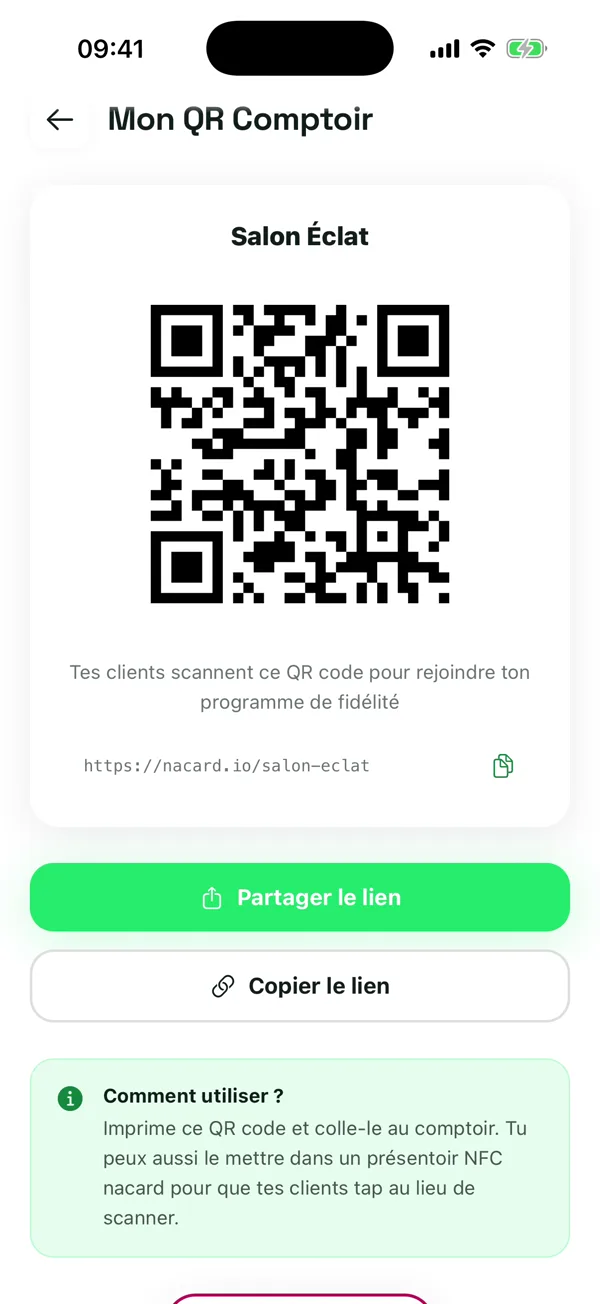
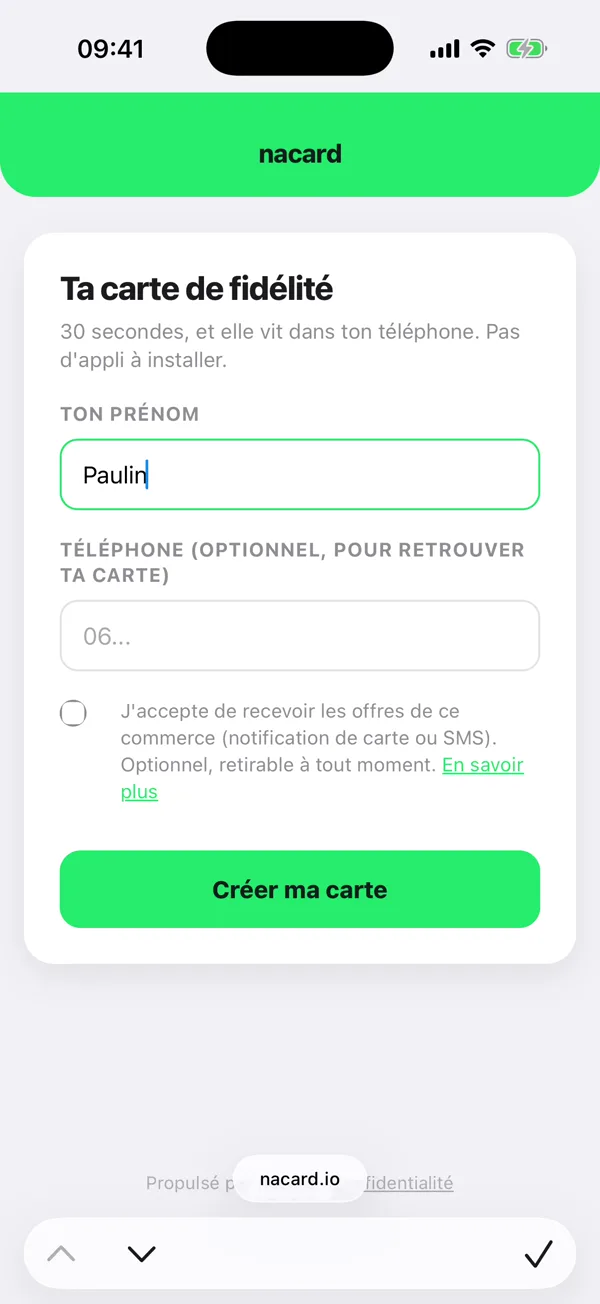
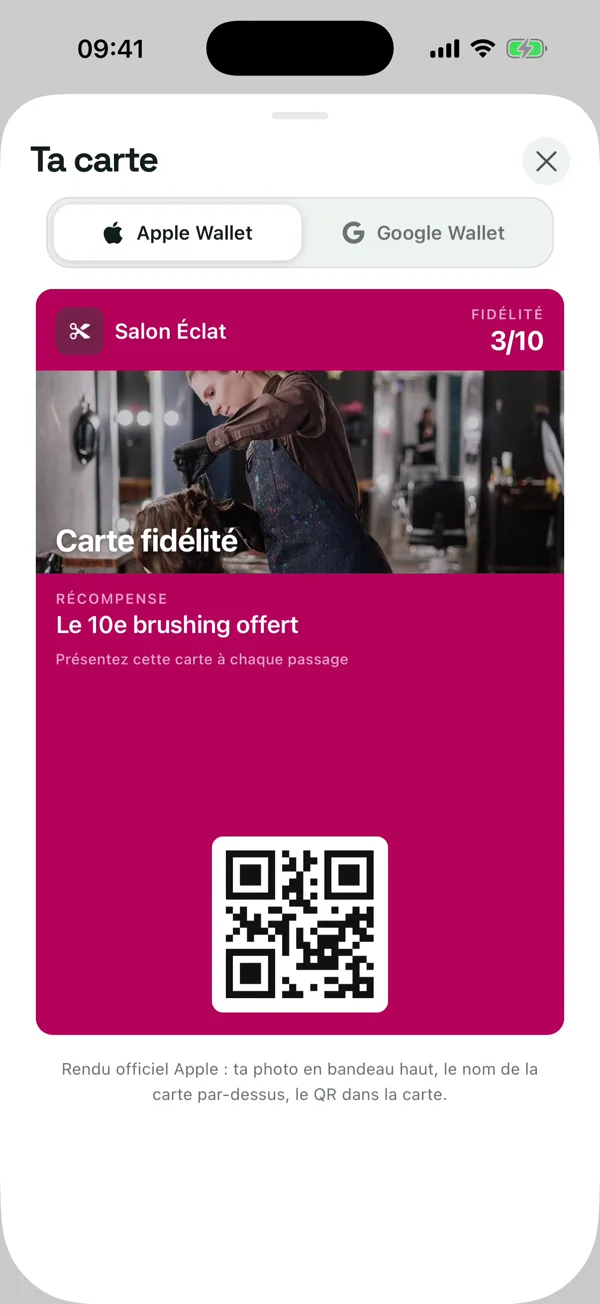
That's it: the card is stored in the Wallet app, next to your payment cards and tickets. To check, open Wallet and scroll.
Some merchants send the card by message. Open the link on your iPhone, preferably in Safari, follow the steps, then tap the add button. Apple also mentions adding cards from a website, an app or via AirDrop.
Large retailers with their own app often include an "Add to Apple Wallet" button, usually in the loyalty card or account section. Tap it, then "Add": the card stays linked to your account with that store.
New in iOS 27: the Wallet app lets you create your own cards from a physical card, a photo or a screenshot, especially for loyalty cards with a barcode or QR code.
A card created this way is only a copy of the barcode: it doesn't update by itself and doesn't show your points. A card provided by the merchant moves forward with every visit.
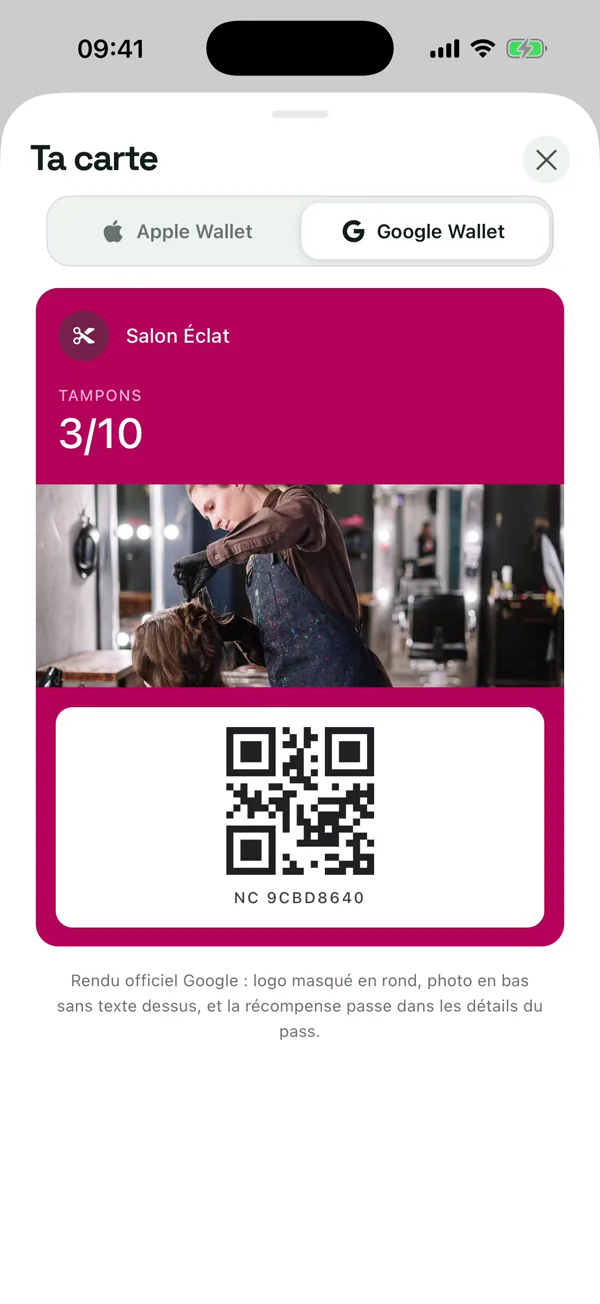
On Android, three paths lead to Google Wallet. Unlike on iPhone, you can also start from the Google Wallet app itself.
If the camera doesn't react to the QR code, which happens on some models, use Google Lens (the icon in the Google search bar) to read it.
If the store doesn't appear, Google says it plainly: the merchant isn't supported. Move on to method 3.
For any card with a barcode or QR code, even without a Google partnership: tap "Add to Wallet", then "Photo", take a picture of the card, give it a name and description, then tap "Add". This is the solution for a plastic card from a store that offers nothing else.
You have a choice. Google Wallet works on Galaxy phones (install it from the Play Store if it isn't there): it's the app that opens when a merchant offers "Add to Google Wallet". Samsung Wallet also accepts loyalty cards: tap + in the top right corner, open the loyalty cards section, pick the store from the list or enter the card details yourself, scan the barcode, then save.
Our advice: pick one and stick with it. Having half your cards in each wallet is the best way to never find the right one at checkout.
On iPhone, open the card in the Wallet app, tap the More button, then open the card's details. Three settings make a real difference day to day:
Removing the card from your phone doesn't necessarily delete your account with the merchant. For that, contact them directly.
Everything above assumes the merchant provides a real Wallet card. For a local business, it's simpler than it looks, but impossible to do alone: Apple requires cards signed with a developer account, Google requires an approved issuer status, and you need a server to update the card at every visit.
That's what nacard does: you create your card in 3 minutes, display a QR code at the counter, and your customers add it exactly as described above. One QR code for iPhone and Android, a stamp in one tap from your phone, and the card updates in their pocket.
Sources: Apple Support (adding, using and sharing passes and cards in Apple Wallet, iOS 26 and iOS 27 guides), Google Wallet Help (loyalty cards, adding from a photo, managing passes), Samsung Support (loyalty cards in Samsung Wallet). Steps checked on September 28, 2026; on-screen labels may vary with your system version and language.
No. On iPhone, the Wallet app (Apple Wallet) is already installed. On Android, Google Wallet comes preinstalled on most phones and can otherwise be downloaded from the Play Store. If the merchant offers a Wallet card, a QR code or a link is all you need.
No. A loyalty card can be added to Apple Wallet or Google Wallet without any payment card saved.
Yes. According to Apple, a card added to Wallet on your iPhone is automatically added to Wallet on your paired Apple Watch. Double-press the side button on the watch to display it.
If it has a barcode or QR code, yes in most cases: Google Wallet lets you add one from a photo, and Wallet on iOS 27 lets you create your own card from a physical card. A stamp card with no code can't be digitized: the merchant has to offer a digital card.
Google Wallet search only lists partner merchants. If yours doesn't appear, add the card from a photo of its barcode, or use the QR code or link provided by the merchant.
On iPhone: open Wallet, tap the card, tap the More button, then choose the option to remove it. On Android: open the card in Google Wallet, open its menu and tap "Remove" (or "Archive" to keep it aside).
Your customers add it just like in this tutorial. Free to start, no commitment.
 nacard